Oracle Apps Techo-Functional

Wednesday, 10 July 2013

How To Creating The Flex Field - Descriptive Flex Field


Descriptive Flex Field:

Descriptive flex fields lets you add additional fields to the form in order to track additional information needed by the business that would not be captured by the standard form. Descriptive flex fields(DFF) can be context sensitive, where the information your application stores depends on other values your users enter in other parts of the form.
Descriptive flex fields(DFF) define field as Attributes level whether it will be Custom table or standard base   table
ATTRIBUTE 1 to ATTRIBUTE15 and ATTRIBUTE_CATEGORY are the normal field used for Descriptive flex fields(DFF) 

Example, I have described below how to create the Descriptive flex field for MTL_systems_item oracle base table.

Creating the Descriptive Flex field columns for Brand (GL)
Login Oracle E-business
Navigate the Application Developer ->Flex Field -> Descriptive -> Segments 
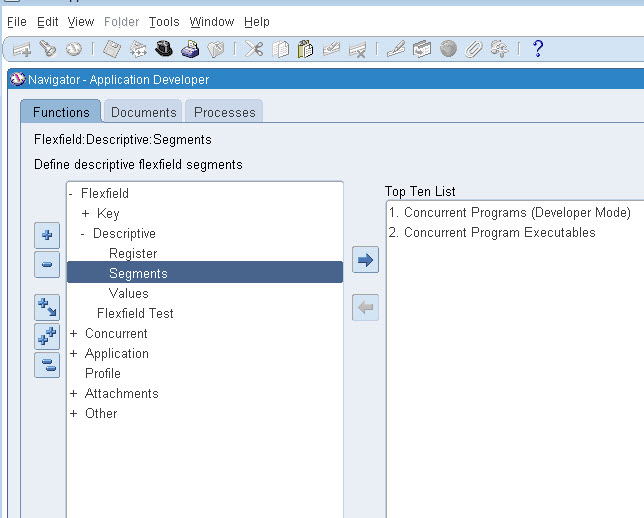
Navigation - Descriptive Flex Field 
    Click to open the Segments window
 
DFF Segment Window

Click Find icon Menu Bar, Query the Inventory under the title of Items

Once Open the Descriptive Flex field Segment for the Application of inventory.
After then uncheck “Freeze flex field Definition “


Press the segment button; it will be list out all Assigned Attributes,then click the new button, to enter the new attribute name and column label it will list out which are the attributes columns are unassigned or free.


Assign the DFF - Attribute column

List out Free DFF Attributes


If you want add Value Set for that Descriptive Flex field attributes means update in value set window or otherwise leave it. Save your work


After then enable the check out “Freeze flex field Definition”. After save, it will show compiling flex field definition and show success compiled


Then you can check whether your DFF added successful or not 


Saturday, 29 June 2013

Run the SQL*loader Based on Concurrent program


SQL * Loader Program - Sample Example

Create the sample concurrent program for running SQL*Loader in Oracle Application
Step 1:
Create the Sql loader control file (.ctl) and data file placed on the server under the path in bin directory (Example: $Custom_top/bin/ )

Step 2:
Create the Control file (.ctl): Demo_test.ctl

Load data
Infile 'D:\Sql_loader\export_dat.dat'
into table demo_test
fields terminated by ','
OPTIONALLY ENCLOSED BY '"'
(
 INDENT_NUMBER,
 CHASSIS,
 ENGINE,
 ITEM
 )

Step 3:
Create the Dat file  (.dat) : export_dat.dat


Step:4
Create Table or copy the structure another Table
Create table demo_test (INDENT_NUMBER      VARCHAR2(20)
CHASSIS            VARCHAR2(100)
ENGINE             VARCHAR2(100)
ITEM               VARCHAR2(100)  );

Copy the Structure of the another  table

Create table demo_test as Select * from XX_table;

Step:5

Creating the concurrent Program 
Application Developer -> Concurrent -> Executables.
Define a concurrent program executable name and choose the execution method is “SQL*loader”  and give the execution file name (name must be same as control file name ). Save it


Step:6

Create the Concurrent program name

Step:7

Goto Parameter Window. Create the parameter to take server path of the data file. Define the Server path on Default value


Step :8

Assign the concurrent program under your custom responsibility through a Request Group


Step:9

Run Program under the Custom Responsibility

After the running the concurrent program ,click “view Log”

+---------------------------------------------------------------------------+
XXTC Custom: Version : UNKNOWN

Copyright (c) 1979, 1999, Oracle Corporation. All rights reserved.

XXTEST_SQLLDR module: XX_Test_Sqlloader_Demo
+---------------------------------------------------------------------------+

Current system time is 29-JUN-2013 13:22:05

+---------------------------------------------------------------------------+


+-----------------------------
| Starting concurrent program execution...
+-----------------------------

Arguments
------------
/u01/applebsuat/applcrp2/apps/apps_st/appl/xxtc/12.0.0/bin/export_dat.dat
------------

SQL*Loader: Release 10.1.0.5.0 - Production on Sat Jun 29 13:22:05 2013


Number to load: ALL
Number to skip: 0
Errors allowed: 50
Bind array:     64 rows, maximum of 256000 bytes
Continuation:    none specified
Path used:      Conventional

Table DEMO_TEST, loaded from every logical record.
Insert option in effect for this table: INSERT

   Column Name                  Position   Len  Term Encl Datatype
------------------------------ ---------- ----- ---- ---- ---------------------
INDENT_NUMBER                       FIRST     *   ,  O(") CHARACTER           
CHASSIS                              NEXT     *   ,  O(") CHARACTER           
ENGINE                               NEXT     *   ,  O(") CHARACTER           
ITEM                                 NEXT     *   ,  O(") CHARACTER           


Table DEMO_TEST:
  238 Rows successfully loaded.
  0 Rows not loaded due to data errors.
  0 Rows not loaded because all WHEN clauses were failed.
  0 Rows not loaded because all fields were null.


Space allocated for bind array:                  66048 bytes(64 rows)
Read   buffer bytes: 1048576


Step:10

Check  the back-end Sql developer, whether table got updated or not

    Select * from demo_test;


Wednesday, 5 June 2013

Move Order Status Verification - WIP


Quantity Delivered vs Detailed in Move Order Lines (MTL_TXN_REQUEST_LINES)
A. What tables are used in the move order process?
1) MTL_TXN_REQUEST_HEADERS:Move order headers, this stores the move order number in column (REQUEST_NUMBER). It has a status, but this is not used as much as the lines status to drive functionality.

2) MTL_TXN_REQUEST_LINES: 
Move order lines, this is the one that drives most queries and status checks for the move order as each line can be transacted individually.

3) MTL_MATERIAL_TRANSACTIONS_TEMP:Pending material transactions table also called the transaction temporary table, this holds allocations that act like reservations on inventory. An allocation is where you pick a specific item in inventory down to the lot, locator, serial, revision to move, but you do not actually perform. the move yet.

            1. Create move order:
            Quantity: 10
            Quantity Delivered: NULL
            Quantity Detailed: NULL
            Quantity Required: NULL
            Line Status: 1 (Incomplete)

            2. Approve move order:
            Quantity: 10
            Quantity Delivered: NULL
            Quantity Detailed: NULL
            Quantity Required: NULL
            Line Status: 3 (Approved)

            3. Allocate move order for full quantity:
            Quantity: 10
            Quantity Delivered: NULL
            Quantity Detailed: 10
            Quantity Required: NULL
            Line Status: 3 (Approved)

            4. Transact move order:
            Quantity: 10
            Quantity Delivered: 10
            Quantity Detailed: 10
            Quantity Required: NULL
            Line Status: 5 (Closed)
NOTE: When a move order is allocated, a corresponding record is inserted into the pending table (MTL_MATERIAL_TRANSACTIONS_TEMP as well as lot/serial tables if required).  
When the move order is transacted, the record moves from the pending table to the history table (MTL_MATERIAL_TRANSACTIONS).

a) Example query for linking move orders with the pending table:

SELECT mmtt.transaction_temp_id,
  tol.organization_id,
  toh.request_number,
  toh.header_id,
  tol.line_number,
  tol.line_id,
  tol.inventory_item_id,
  toh.description,
  toh.move_order_type,
  tol.line_status,
  tol.quantity,
  tol.quantity_delivered,
  tol.quantity_detailed
FROM mtl_txn_request_headers toh,
  mtl_txn_request_lines tol,
  mtl_material_transactions_temp mmtt
WHERE toh.header_id = tol.header_id
 AND toh.organization_id = tol.organization_id
 AND tol.line_id = mmtt.move_order_line_id;

b) Example query linking MTL_MATERIAL_TRANSACTIONS to the move order:
SELECT mmt.transaction_id,
  tol.organization_id,
  toh.request_number,
  toh.header_id,
  tol.line_number,
  tol.line_id,
  tol.inventory_item_id,
  toh.description,
  toh.move_order_type,
  tol.line_status,
  tol.quantity,
  tol.quantity_delivered,
  tol.quantity_detailed
FROM mtl_txn_request_headers toh,
  mtl_txn_request_lines tol,
  mtl_material_transactions mmt
WHERE toh.header_id = tol.header_id
 AND toh.organization_id = tol.organization_id

 AND tol.line_id = mmt.move_order_line_id
 AND toh.request_number = '&MONumber';
/
4. Find a Closed Move Order, but No Staged Inventory?
There are times when a move order will close, but the quantity is not moved from finished goods to a staging sub inventory.  The most common case of this is a move order for a sub inventory or item that is NOT reservable.  If the item is not reservable, no inventory is staged and the move order simply closes without doing anything.  However, there are rare occasions when a move order closes without moving quantity to staging but should have.  In the case of a move order related to a sales order, the sales order delivery detail shows picked and Released to Warehouse after the move order is transacted. 
5. What is code for move order status?
The move order table (MTL_TXN_REQUEST_LINES) provides the status of the move order in the LINE_STATUS column as a numeric.  The following lists the various statuses as well as provides a SQL to look them up.
At the time this question was entered, here are a list of the statuses and codes:
        1 Incomplete
        2 Pending Approval
        3 Approved
        4 Not Approved
        5 Closed
        6 Cancelled
        7 Pre-Approved
        8 Partially Approved
        9 Cancelled by Source